

Complete Guide to Velvet MD
Master markdown styling with templates, colors, and exports
1. Introduction
Velvet MD transforms plain markdown text into professionally styled documents. Whether you're writing reports, documentation, or academic papers, Velvet MD provides the tools to create beautiful, publication-ready output.
All processing happens locally in your browser—your content never leaves your device, ensuring complete privacy.
- 16 curated templates for different document types
- 20 color schemes plus custom color controls
- 35+ font families for headings, body, and code
- Export to HTML, PDF, or DOCX
Before & After
# Welcome to My Document

This is a **bold statement** with some *italic* text.

## Features

- Easy to write
- Clean syntax
- Portable format

> "Markdown is a great choice for documentation."

```javascript
function greet(name) {
  return `Hello, ${name}!`;
}
```Welcome to My Document
This is a bold statement with some italic text.
Features
- Easy to write
- Clean syntax
- Portable format
"Markdown is a great choice for documentation."
function greet(name) {
  return `Hello, ${name}!`;
}
2. Interface Overview
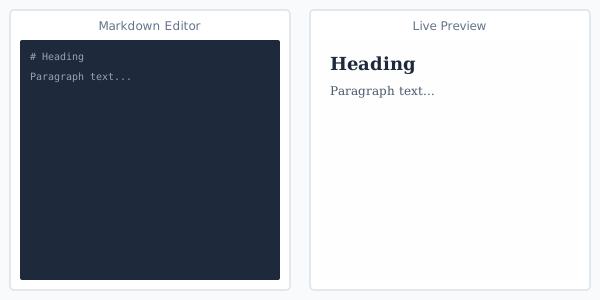
The Velvet MD interface is divided into three main areas: the markdown editor on the left, the live preview on the right, and the styling controls in the sidebar.
A real editor with live highlighting
As you type, Velvet MD highlights your Markdown — headings, bold, links, lists and code — and updates the live preview beside it. A formatting bar above the editor adds bold, italic, headings, lists, quotes, links, images, code blocks and tables with a single click.
Keyboard shortcuts and the command palette
You can drive everything from the keyboard. Press Ctrl/Cmd+K to open the command palette and run any action — apply a template or colour scheme, change the view, insert a table or export — just by typing its name.
- Ctrl/Cmd + B, I — Bold and italic
- Ctrl/Cmd + K — Open the command palette
- Ctrl/Cmd + F — Find and replace
- Ctrl/Cmd + S — Download as a .md file
- Enter / Tab — Continue a list or indent
Find, outline and live counts
Press Ctrl/Cmd+F to find and replace text. The status bar shows live word, character and reading-time counts and a synced-scroll toggle, plus a clickable outline of your headings to jump around the document. Switch between Editor, Split and Preview, or enter Zen mode for distraction-free writing.
Toolbar
- File — Open a file, start a new document, load the sample or the syntax guide, download your work as .md, or clear the editor — all from the File menu
- Style — Open the styling panel: templates, colours, typography and layout — including the S/M/L workspace size
- Zen — Distraction-free Zen mode that hides everything but the editor and preview
- Export — Download your styled document in HTML, PDF, or DOCX format
- S (Small) — Compact view, shows more content on screen
- M (Medium) — Balanced view, default setting
- L (Large) — Larger text and preview for detailed work
Opening files
- Drag & Drop — Drop any .md file directly onto the editor to open it
Sidebar Tabs
Open it with the Style button. The panel has four tabs for customizing your document:
- Templates — Choose from 16 pre-designed styles
- Colors — Apply color schemes or set custom colors
- Type — Select fonts and adjust sizing
- Layout — Control document width, the S/M/L workspace size, and decorative options
3. Templates
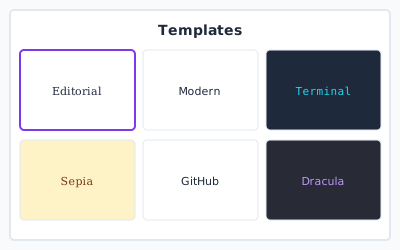
Velvet MD offers 16 professionally designed templates. Each template provides a complete visual style including fonts, colors, spacing, and decorative elements.
Editorial
Classic serif typography with elegant spacing. Perfect for essays, articles, and long-form content.
Modern
Clean sans-serif with bold accents. Contemporary look for business documents.
Terminal
Monospace fonts on dark background. Ideal for technical documentation.
Academic
Traditional academic formatting with serif fonts and generous line spacing for papers.
GitHub
Familiar README styling. Perfect for developer documentation.
Dracula
Popular dark theme with purple accents. Easy on the eyes.
Additional templates include Minimal, Magazine, Notion, Sepia, Nord, Dracula, Solarized, Monokai, Paper, and Tokyo Night.
4. Color Schemes
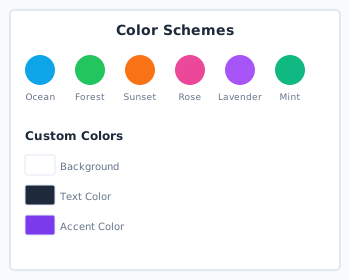
Customize your document's color palette using quick schemes or fine-tune individual colors for complete control.
Quick Schemes
Apply a complete color palette with one click. The 20 available schemes are organized by mood:
Calming blue tones
Natural green hues
Warm pink accents
Professional gray
Deep blue elegance
Neon tech vibes
Custom Colors
For precise brand matching or personal preference, adjust individual color values:
Custom Brand Colors
With custom colors, you can match your company branding exactly.
// Your branded code block
const brand = "Custom";- Background — Document background color
- Text Color — Body text color
- Heading Color — Color for all heading levels
- Accent / Links — Links, highlights, and accent elements
- Code Background — Background for code blocks and inline code
- Blockquote Border — Left border color for blockquotes
5. Typography
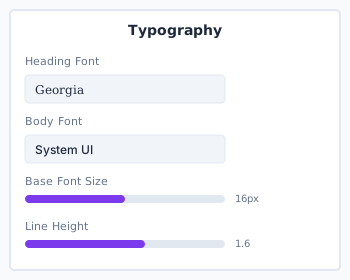
Fine-tune the typography of your document with font families, sizes, and spacing controls.
Font Families
Choose from 35+ carefully selected fonts for each text category:
Perfect for long-form reading. The serifs guide the eye along lines of text.
Modern and minimal. Great for screens and contemporary documents.
Fixed-width for code. All characters align perfectly.
Sizing & Spacing
Compact text for dense documents or footnotes.
Standard readable size for most content.
Large and accessible for presentations.
Line Height Impact
This text has tight line spacing. It's harder to read in long paragraphs but saves vertical space. Good for headings.
This text has generous line spacing. Much easier to read for body text. Recommended for academic papers and long-form content.
6. Layout Options
Control document structure, alignment, and decorative elements to achieve the perfect layout.
Document Settings
- Content Width — Maximum width of content area (600-1200px recommended)
- Padding — Space around the content
- Text Alignment — Left-aligned, justified, or centered text
Left-aligned text flows naturally for western languages. Most common and recommended default.
Justified text creates clean edges on both sides. Professional look for printed documents and newspapers.
Centered text works for titles and short passages. Not recommended for long paragraphs.
Decorative Options
End of section one.
Beginning of section two.
Document Title
Adds a decorative underline to main headings.
const x = 1;const x = 1;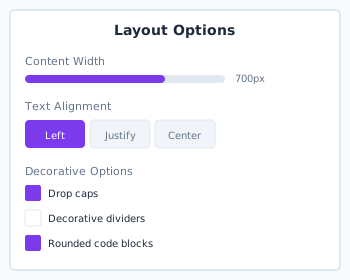
7. Export Formats
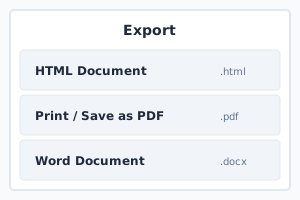
Export your styled document in the format that best suits your needs:
| Format | Guide to Velvet MD: choose from 16 templates, customize colors and typography, adjust layout settings, and export styled markdown as HTML, PDF, or DOCX. | Best For |
|---|---|---|
| HTML | Standalone web page with all styles embedded | Web hosting, email, archiving |
| Print-ready document via browser print dialog | Printing, sharing, presentations | |
| DOCX | Microsoft Word format with syntax highlighting | Editing, collaboration, submissions |
8. Tips & Best Practices
Choosing Templates
- Use Editorial or Sepia for long-form content like essays and reports
- Choose Terminal or GitHub for technical documentation with code
- Academic template is ideal for papers requiring formal structure
- Dark templates (Dark Mode, Dracula, Nord) are easier on eyes in low-light
Optimizing Output
- For print: use light backgrounds and higher contrast colors
- For screen reading: 600-700px content width is optimal for body text
- Export to DOCX when you need to make further edits in Word
Ready to Style Your Markdown?
Open Velvet MD and transform your markdown into beautiful documents.
Open Velvet MD