

Seeds and Sharing in Spectra
Learn how seed numbers make every image reproducible and how to share your creations
How Seeds Work in Spectra
A seed is simply a number that controls the randomness in image generation. Think of it as a recipe number — enter the same seed with the same style and dimensions, and you will always get the identical image.
This deterministic behavior is what makes Spectra images reproducible. The New Seed button generates a random number, or you can type any number you like. Seeds can be any integer — try your birthday, a lucky number, or just let Spectra pick one for you.
When you find an image you love, note the seed number displayed below the preview. That number is your key to recreating that exact image anytime.


Sharing Your Creations
The share button creates a link that encodes all your current settings — style, dimensions, seed, color harmony mode, seed color, blur, and grayscale toggle. Anyone who opens this link will see the exact same image you see.
This makes sharing effortless. Send a link to a colleague to show them a background option. Post it on social media so others can see and remix your creation. Bookmark it in your browser to come back to a favorite result later.
The link contains everything needed to reproduce the image, so you never need to worry about saving large image files just to remember a design you liked.
Building a Personal Collection
As you use Spectra, you will discover seed and style combinations that produce results you love. Here are some strategies for building your own collection.
Keep a simple list of your favorite settings: seed number, style name, and harmony mode. When you need a new image, start from a proven combination and change just one parameter — try a different style with the same seed, or the same style with a different harmony mode.
Changing a single parameter creates controlled variations that are related but distinct. This is much more efficient than starting from scratch each time, and it helps you build a library of coordinated visuals.


Batch Exploration Tips
When you are looking for the perfect image, efficient exploration saves time. Here are some approaches that work well.
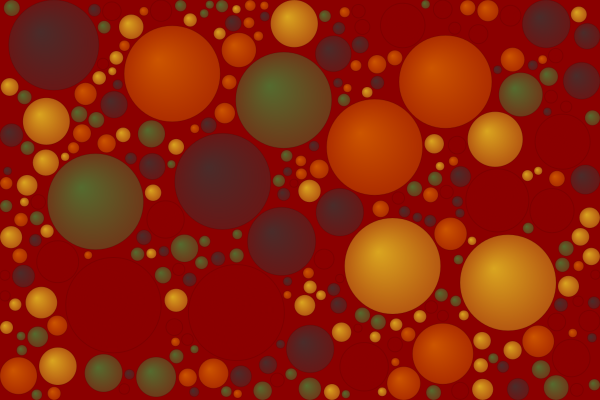
Use Auto-Generate mode so results update instantly as you change styles — just click through the style selector and watch each result appear in real time. Try sequential seed numbers (like 100, 101, 102) to see how small seed changes affect the output for a given style.
The Randomize button changes both the style and seed at once, giving you completely fresh results with each click. This is great for quick inspiration when you are not sure what you are looking for. Once you spot something promising, fine-tune by adjusting the harmony mode or blur level.