

Complete Guide to Time Calculations
Master every tab: add, subtract, multiply, divide time values, log work hours, parse date math, and write free-form expressions.
1. Adding & Subtracting Time
The Duration tab handles basic time arithmetic. Set hours, minutes, and seconds using the spinner controls, then click Add or Subtract. The calculator automatically handles overflow — 90 minutes becomes 1 hour 30 minutes.
Results display in both HH:MM:SS format and decimal hours, which is useful for timesheets and billing systems.
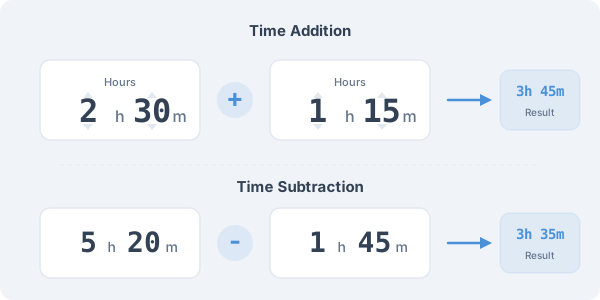
You can chain multiple operations: add 2h 30m, then subtract 45m, then add 1h 15m. The running total updates after each step. This is ideal for summing split times, calculating shift totals, or combining multiple task durations.
2. Multiplying & Dividing Time
Switch to Multiply / Divide mode in the Duration tab. Enter a time value and a multiplier or divisor. For example, if a task takes 45 minutes and you need to do it 5 times, enter 0:45:00 × 5 to get 3:45:00.
Division splits time evenly: 3:00:00 ÷ 4 = 0:45:00 each. Quick factor buttons (×2, ×3, ÷2, etc.) speed up common calculations.
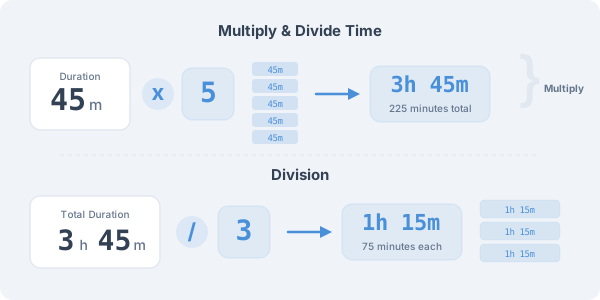
Time multiplication is useful for estimating project totals (12 tasks × 45 min each), calculating repetitive schedules, or scaling time budgets. Division helps split shared time among team members or calculate per-unit durations.
3. Timesheet & Work Hours
The Timesheet tab lets you log multiple work sessions and get an automatic total. Enter time as durations (8h 00m) or as start/end times (9:00 → 17:30). Add rows for each day or task.
Optional features include break deduction (subtract a fixed break per entry), rounding (to the nearest 6, 15, or 30 minutes), and compensation with currency selector (choose your currency and enter your hourly rate to see total pay).
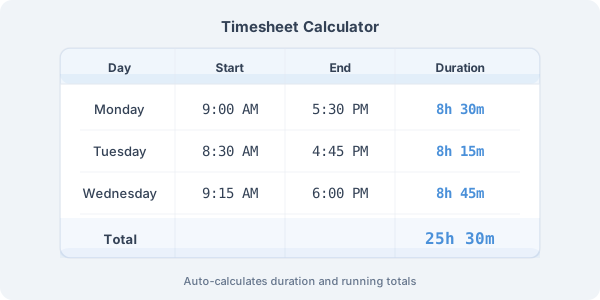
The timesheet shows gross hours, net hours (after breaks), and decimal hours side by side. With the hourly rate feature, you can instantly see your total compensation — useful for freelancers, consultants, and anyone tracking billable hours.
4. Clock Time Calculations
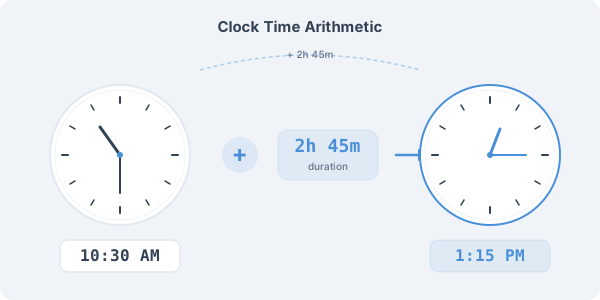
The Time tab works with clock times instead of durations. Two modes are available: Add/Subtract a duration to a clock time (e.g., 10:30 AM + 2h 45m = 1:15 PM), or calculate the time Between two clock times (e.g., 9:15 AM to 5:30 PM = 8h 15m).
The calculator handles midnight crossover correctly — if the end time is earlier than the start time, it assumes the next day.
5. Date Arithmetic
Two date tabs cover different needs. Date Add/Subtract lets you add or subtract days, weeks, months, or years from any date — useful for calculating deadlines, expiration dates, or project milestones.
Date Difference calculates the exact duration between two dates, showing results in days, weeks, months, and years. A business days toggle excludes weekends from the count.
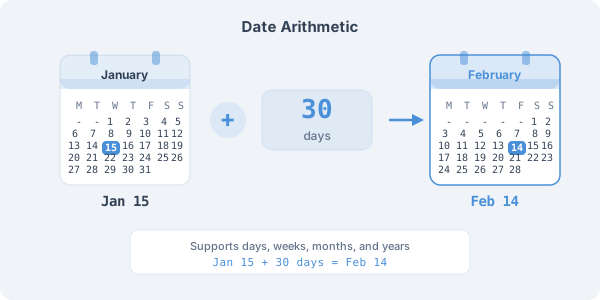
The date calculator respects calendar rules — adding 1 month to January 31 gives February 28 (or 29 in leap years), not an invalid date. Results are always displayed in the locale-appropriate date format.
6. Time Expressions
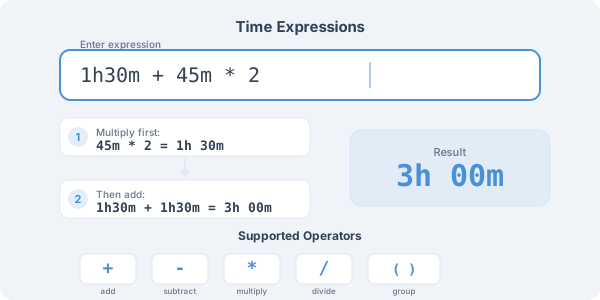
The Expression tab lets you type time calculations in natural notation. Write expressions like "2h30m + 45m × 3" or "1:30:00 − 0:45:00" and get instant results. The parser understands hours (h), minutes (m), seconds (s), and colon notation (HH:MM:SS).
Operations follow standard math precedence: multiplication and division are evaluated before addition and subtraction. Use parentheses to override the order when needed.
Ready to Calculate?
Open the time calculator and start adding, subtracting, multiplying, or dividing time values. All features work directly in your browser — no sign-up needed.
Open Time Calculator