

Invoice Generator Guide
Create professional invoices and estimates with ease
1. Overview
The Invoice Generator helps you create professional invoices and estimates that you can download as PDF or print. Choose between two document types:
- Invoice — A bill for services or products already delivered
- Estimate — A quote for proposed work before it begins
All data stays in your browser. Nothing is sent to any server.
2. Creating Your First Invoice
Follow these steps to create your first invoice:
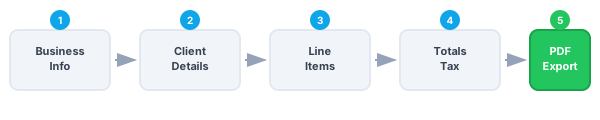
- Select document type — Click Invoice or Estimate at the top
- Fill in your business info — Enter your name, address, and contact details in the FROM section
- Add client details — Enter the client's name and address in the BILL TO section
- Add line items — Enter description, quantity, and rate for each item or service
- Download or print — Click PDF to download or Print to send to your printer
3. Business Profile
Save your business information to auto-fill it on new documents. The profile includes:
- Company name and address
- Contact information (phone, email, website)
- Tax ID or business number
- Company logo
Click 'Save Profile' to store your information. It will automatically load when you create new documents.
4. Client Management
Save frequently used clients to quickly fill in their information:
- Save Client — Click the save icon next to BILL TO to store client details
- Search Clients — Type in the search box to find and select saved clients
5. Line Items
Each line item represents a product or service you're billing for:
| Field | Purpose |
|---|---|
| Description | What you're billing for (e.g., 'Web Development', 'Consulting') |
| Qty | Number of units, hours, or items |
| Rate | Price per unit |
| Taxable | Whether tax applies to this item |
Click '+' to add more items. Click the trash icon to remove an item.
6. Calculations
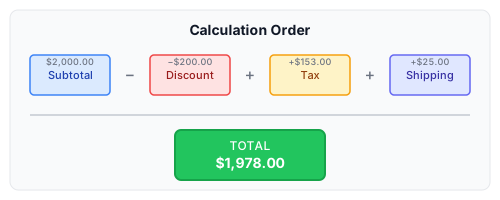
The tool automatically calculates your totals with support for:
- Discount — Fixed amount or percentage off the subtotal
- Tax — Tax percentage applied to taxable items (exclusive or inclusive)
- Shipping — Fixed shipping or delivery charge
7. PDF Export
Export your invoice as a professional PDF. Choose from three styles:
| Style | Learn how to create professional invoices and estimates with automatic line-item totals, tax rates, discounts, and PDF export, all generated in your browser. |
|---|---|
| Classic | Traditional business layout with dark header |
| Modern | Clean design with blue accents and more whitespace |
| Compact | Dense layout to fit more content on one page |
Select a style and click 'Download PDF' or 'Print' to generate your document.
8. Logo and Branding
Add your company logo for a professional look:
- Upload — Click the logo area or 'Add Logo' button to upload an image
- Crop & Rotate — Adjust the crop area and rotate if needed
- Size on Paper — Choose the logo width in mm or inches for the PDF
Supported formats: PNG, JPEG, GIF, WebP, BMP (auto-converted to PNG/JPEG)
9. Saving and Loading
Save your documents and quickly access recent ones:
- Save to File — Downloads a JSON file you can load later
- Recent Documents — Click 'Recent' to see your last 10 invoices and estimates
- Convert to Invoice — Click '→ Invoice' on any estimate to convert it with a new invoice number
The 'Biz' and 'Biz+Client' buttons let you quickly load just the business or business+client info from a saved document.